How to Collect
Your BIB
Follow this step-by-step guide to collect your race BIB from the Fitistan App — whether you're picking it up yourself or assigning someone else.
View the full documentation below ↓
Open the Fitistan App
Open the Fitistan App and navigate to your Profile.
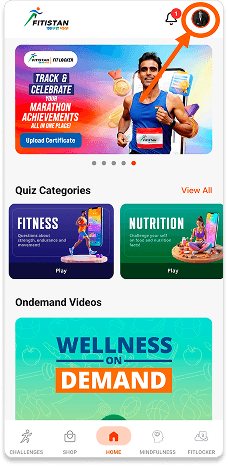
Open Fitistan App
Download the Fitistan app from the App Store or Play Store if you haven't already.
Make sure you're logged in
Log in with the same account you used to register for Soldierathon.
Go to Profile
Tap the Profile icon at the top of the screen to access your account.
Access Event Tickets
Inside your Profile, locate and tap Event Tickets to see all your registered events.
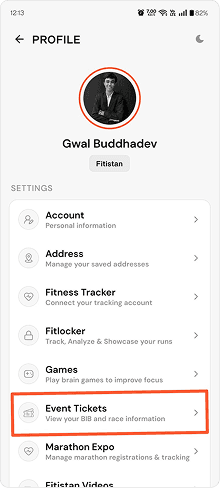
Find Event Tickets
Scroll through your profile options and tap Event Tickets.
Event Ticket
Your registered event ticket will appear here.
Slot Booking & Verification
Complete your BIB slot booking by uploading a selfie and a valid ID proof for verification.
Choose Your Slot
Pick a convenient date and time slot for BIB collection from the available options.
Upload a Selfie
Click a clear selfie of yourself. Ensure good lighting and your face is fully visible.
Upload ID Proof
Upload a government-issued photo ID (Aadhaar, PAN, Passport, Driving Licence, etc.).
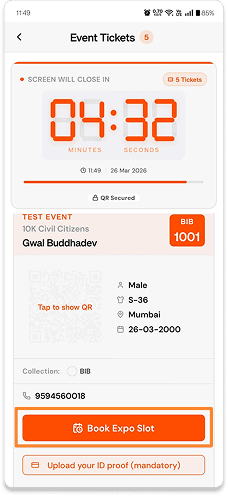
Event Ticket
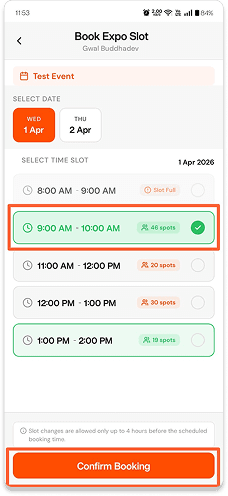
Select Time Slot
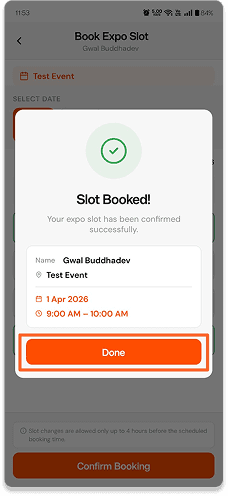
Slot Booked
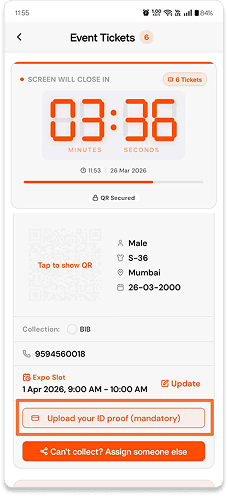
Complete Verification
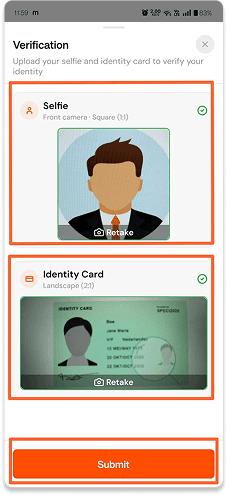
Upload Selfie
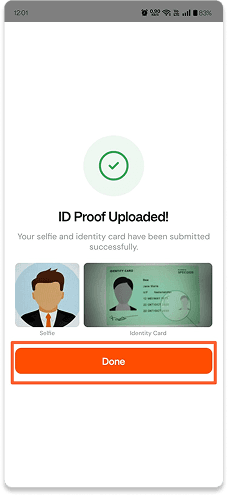
Upload ID Proof
Important: Your selfie and ID must match. Verification is mandatory.
Collecting Your BIB
Once verified, you have two options — collect the BIB yourself or assign someone else to pick it up on your behalf.
Collect Yourself
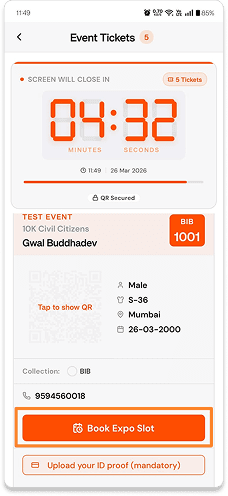
Tap to Show QR
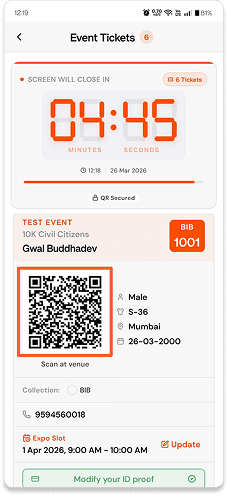
Show at Counter
Open your Event Ticket and tap Show QR Code.
A unique QR code will appear on your screen.
Walk up to the BIB collection counter on event day.
Present your QR code — the volunteer will scan it and hand you your BIB.
Assign Someone Else
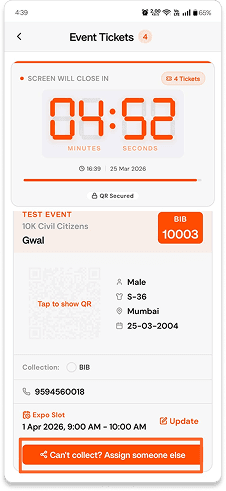
Assign Option
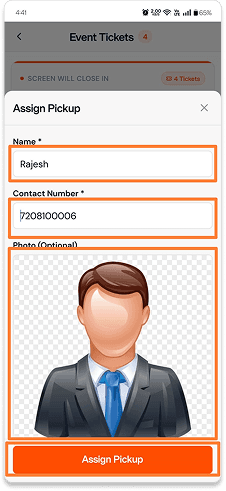
Assignee Details
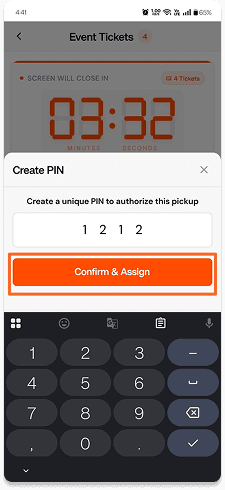
Set PIN
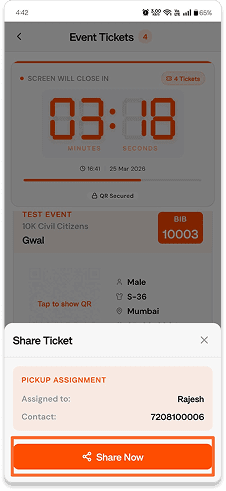
Share Link
Tap Assign to Someone Else on your ticket screen.
Enter the assignee's name, phone number. You can also upload their photo (optional) for easier idenification.
Set a secure 4-digit PIN. This PIN will be required by the assignee to access the QR code securely.
Share the generated link with your assignee via WhatsApp, SMS, or any platform.
Assignee Verification
& QR Access
The person collecting on your behalf follows these steps using the shared link.
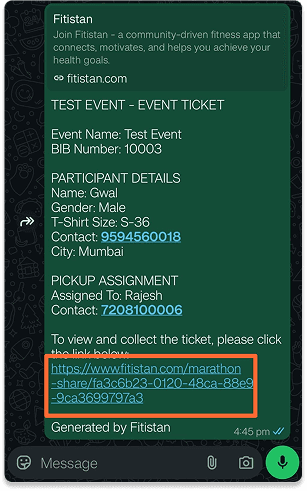
click on link
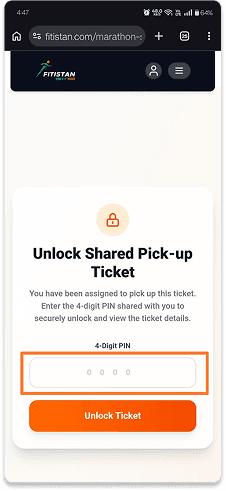
enter pin
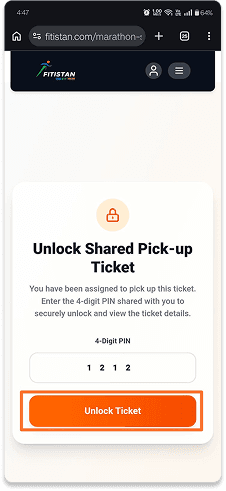
unlock ticket
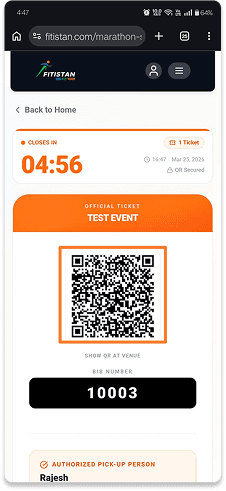
Collect BIB
Open the Shared Link
The assignee taps the link shared by the participant. It opens in a browser or the Fitistan App.
Enter the 4-digit PIN
The assignee enters the PIN that the participant set during the assignment process.
QR Code is Revealed
After successful PIN verification, the QR code is displayed on the assignee's screen.
Collect the BIB
The assignee presents this QR code at the BIB counter. The volunteer scans it and hands over the BIB.
You're Ready to Run!
Download the Fitistan App, complete your verification, and collect your BIB. See you on the race ground, soldier.